
A short video course can be one of the most useful digital products you make. Some topics are simply easier to show than to write about: a software walkthrough, a design technique, a spreadsheet setup. And buyers often see video lessons as a step up from a PDF.
The catch is that video feels technical. Cameras, microphones, editing software and export settings can stop a project before it starts. This guide keeps things simple. You’ll plan a small course, record it with free or low-cost tools, export files that work on common course platforms and package everything so buyers can actually use it.
Plan a course that’s small on purpose
The biggest mistake with a first video course is making it too big. A focused mini-course is easier to finish, easier to sell and easier for buyers to complete.
Pick one outcome
Write one sentence that describes what the buyer will be able to do at the end. “Set up a simple monthly budget in Google Sheets” is a clear outcome. “Master your finances” is not.
Break it into short lessons
List the steps someone needs to reach that outcome, then turn each step into a lesson. Short lessons are easier to record, easier to re-record when you make a mistake and easier for buyers to fit into their day. Aim for lessons that cover one idea each.
Write a simple outline for each lesson
You don’t need a full script unless it helps you. A short outline works for most people:
- What this lesson covers
- The steps or points, in order
- A quick recap and what comes next
If you’re adapting PLR material, the existing chapters or articles can become your lesson outlines. Rewrite them in your own words and add your own examples so the course sounds like you, and check the PLR license to make sure it allows turning the content into video.
Choose your recording style
There are three common styles. You can mix them, but picking one main style keeps production simple.
Screen recording
You record your screen and talk over it. This is the easiest place to start and works for software tutorials, slide-based lessons and anything you can demonstrate on a computer. You don’t need to appear on camera at all.
Slides with voiceover
You build slides in a presentation tool and record your voice as you click through. This works well for concept-heavy lessons and is easy to update later, because you can change a slide and re-record just that section.
Talking head
You record yourself on camera. It builds connection, but it takes more setup: lighting, background and a camera position that looks natural. Many creators use a short talking-head intro and then switch to screen or slides for the teaching.
Gather basic equipment
You can make a good course with gear you probably already own. Prioritize in this order.
1. Audio
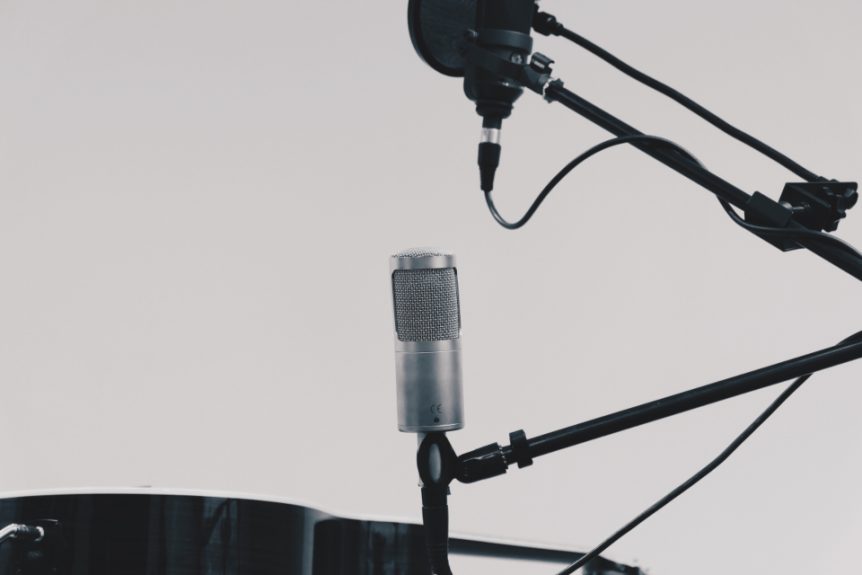
Viewers will forgive average video much more readily than hard-to-hear audio. A basic USB microphone or a wired headset mic usually sounds better than a laptop’s built-in microphone. Record in a quiet room with soft surfaces, such as curtains, a rug or a closet full of clothes, to cut down on echo.
2. Recording software
OBS Studio is free, open-source software for video recording and live streaming that runs on Windows, macOS and Linux. It can record your screen, your webcam or both. Many operating systems and presentation tools also include built-in screen recording, so check what you already have before installing anything.
3. Lighting and camera (for on-camera lessons)
If you appear on camera, face a window or a soft light so your face is evenly lit. Put the camera at about eye level. A modern phone camera is often more than good enough.
Record efficiently
A few habits make recording go faster and editing much easier.
- Do a 30-second test first. Record a short clip and play it back with headphones. Check volume, background noise and whether your screen text is readable.
- Clean up your screen. Close extra tabs and apps, turn on “do not disturb” and hide anything personal.
- Increase text size. If you’re recording software, zoom in so buyers can read menus and text on a smaller screen.
- Record one lesson at a time. Name each file with the lesson number right away.
- Pause instead of stopping. If you stumble, pause for a moment and repeat the sentence. It’s easy to cut the mistake out later.
Edit lightly
Your goal is clear lessons, not a film. Most course editing comes down to a few tasks:
- Trim the start and end of each clip
- Cut long pauses and repeated sentences
- Add a simple title card with the lesson name, if you like
- Keep audio levels consistent from lesson to lesson
Many free and low-cost editors can handle this. Pick one you’re comfortable with and resist the urge to add effects that don’t help people learn.
Export settings that work on most platforms
Export settings sound intimidating, but a single standard setup works for most course platforms.
Use MP4 with H.264
YouTube’s recommended upload settings are a widely used reference point. They call for an MP4 container, the H.264 video codec, AAC-LC audio (or Opus) at a 48 kHz sample rate and a frame rate that matches what you recorded. For 1080p video at a standard frame rate, YouTube suggests about 8 Mbps.
Match your course platform’s limits
Course platforms publish their own recommendations, so check yours before you export. Two examples:
- Teachable recommends MP4, MOV or AVI files, 1080p resolution (1920 x 1080) and 24 to 30 frames per second. It lists a recommended video size of up to 2 GB, with a 20 GB overall upload limit.
- Kajabi says its maximum video upload size is 4 GB.
For most screen-recorded lessons, 1080p at 30 frames per second is a sensible default.
Shrink files if needed
If a file is too large, HandBrake is a free, open-source tool for Windows, macOS and Linux that converts video into widely compatible formats. You can use it to re-encode a large export into a smaller MP4.
Add captions and transcripts
Captions make your course accessible to people who are Deaf or hard of hearing, and they help anyone watching in a noisy place or learning in a second language. The W3C’s Web Accessibility Initiative explains that captions are synchronized text of the speech and important sounds, while transcripts are the same text without timing, so you can create one from the other.
Automatic captions can save time, but the W3C cautions against relying on them unless they’re checked for accuracy, since a single wrong or missing word can change the meaning. Use auto-captions as a first draft, then review and correct them.
A downloadable transcript also doubles as a bonus resource. Many buyers like having a written version to skim or search.
Package your course
How you deliver the course depends on where you sell it.
On a course platform
Upload each lesson as its own video, in order, with a short text description under each one. Add any worksheets or checklists as downloads in the relevant lesson.
As a downloadable product
If you sell through a store that delivers files, such as a digital download platform, bundle your lessons in a clear structure:
- A “Start Here” PDF that explains what’s included and the order to watch
- A folder of lesson videos named with numbers, such as “01-setting-up-your-sheet.mp4”
- Transcripts and any worksheets in their own folder
- A short license or terms file if you’re allowing any reuse
Zip the folder and check the total size against your platform’s file limits. If it’s very large, consider hosting the videos on a course platform or private video host and delivering the links instead.
Test before you launch
Before you sell, go through the course as a buyer would:
- Download or open every lesson on a computer and a phone
- Check that audio is clear and consistent
- Confirm captions line up and read correctly
- Make sure every worksheet link and download works
- Read the “Start Here” guide as if you’d never seen the course before
Fix anything confusing now. It’s much easier than answering the same support question over and over.
Keep it updateable
Software changes, and so will some of your lessons. Keep your outlines, slides and original recordings organized so you can replace a single lesson without rebuilding the whole course. Short, focused lessons make this easy, which is one more reason to keep each one small.
A video mini-course doesn’t require a studio. Start with one clear outcome, a decent microphone and free recording software, export in a standard format, add accurate captions and test everything before launch. Your second course will go much faster than your first.
Sources
- YouTube Help: Recommended upload encoding settings
- Teachable Support: Content file types
- Kajabi Help: What is the maximum video file size?
- OBS Project: OBS Studio
- HandBrake: The open source video transcoder
- W3C Web Accessibility Initiative: Captions/Subtitles
Featured image: Photo: StockSnap (CC0)